

Introduction
This guide provides a complete walkthrough of the Match Trader trading platform. It covers logging in, navigating the interface, executing trades, using charts, adding indicators, managing orders, downloading account statements, and switching accounts. This guide is ideal for beginners looking for a structured reference for all essential platform features.
1. Logging into Match Trader
-
Use the username provided on your dashboard (not email) and your password.
-
Click Sign In to access the platform.
-
If multiple accounts are associated with the same email, click the account number at the top left to switch between them.
2. Platform Layout Overview
-
Top Left: Account number, balance, equity, free funds, margin, margin level, and profit.
-
Left Sidebar:
-
Top Movers: Shows trending instruments with daily percentage change.
Favorites: Instruments you’ve added.
All Symbols: Instruments categorized by commodities, cryptocurrencies, forex, indices, etc.
-
Search bar to find instruments quickly.
-
Bottom Tabs:
-
Open Positions, Pending Orders, Finance, Closed Positions
3. Charting and Customization
Opening Charts
-
Click on an instrument in the instrument window to open its chart.
Time Frames and Chart Types
-
Time Frames: 5-min, 15-min, hourly, daily, weekly, monthly.
-
Chart Types: Candles, bars, lines, and area.
Multiple Charts and Layouts
-
Open multiple charts (up to 4) in horizontal or vertical layout.
Zoom and Crosshair
-
Zoom in/out to adjust chart view.
-
Crosshair lets you identify the exact price level and time point of any candle or chart position, while also displaying OHLC data (Open, High, Low, Close) next to the symbol name for quicker market analysis.
Drawing Tools and Indicators
-
Drawing Tools: Vertical/horizontal lines, channels, trend lines, Fibonacci retracements, and more.
-
Indicators: Built-in indicators like Moving Average, MACD, Bollinger Bands, ATR.
-
Modify appearance (color, size) or remove tools/indicators easily.
-
Trading View integration for enhanced charting features.
4. Trading on Match Trader
Market Orders
-
Select instrument, set lot size, and click Buy or Sell.
-
Use Advanced Order to open market or pending orders.
-
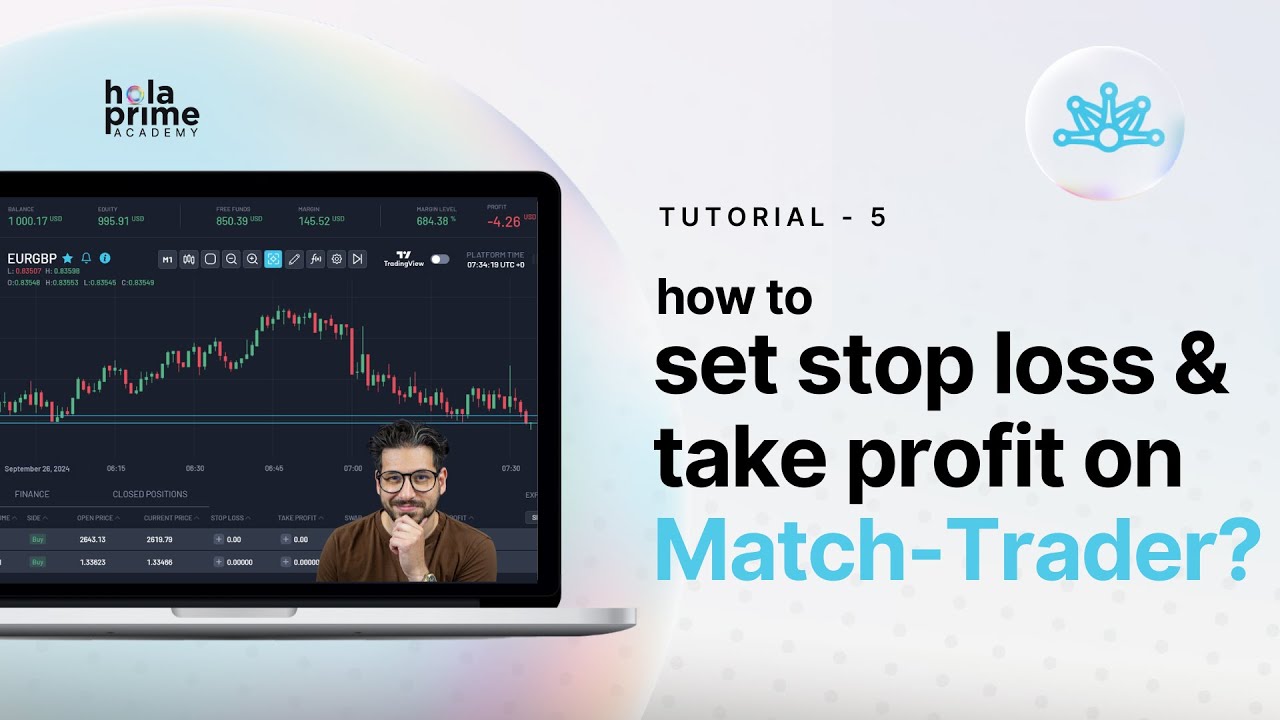
Stop-loss and take-profit levels can be set via icons or dragged directly on the chart.
-
Stop-loss rules:
-
Buy trades: Stop-loss below current price
-
Sell trades: Stop-loss above current price
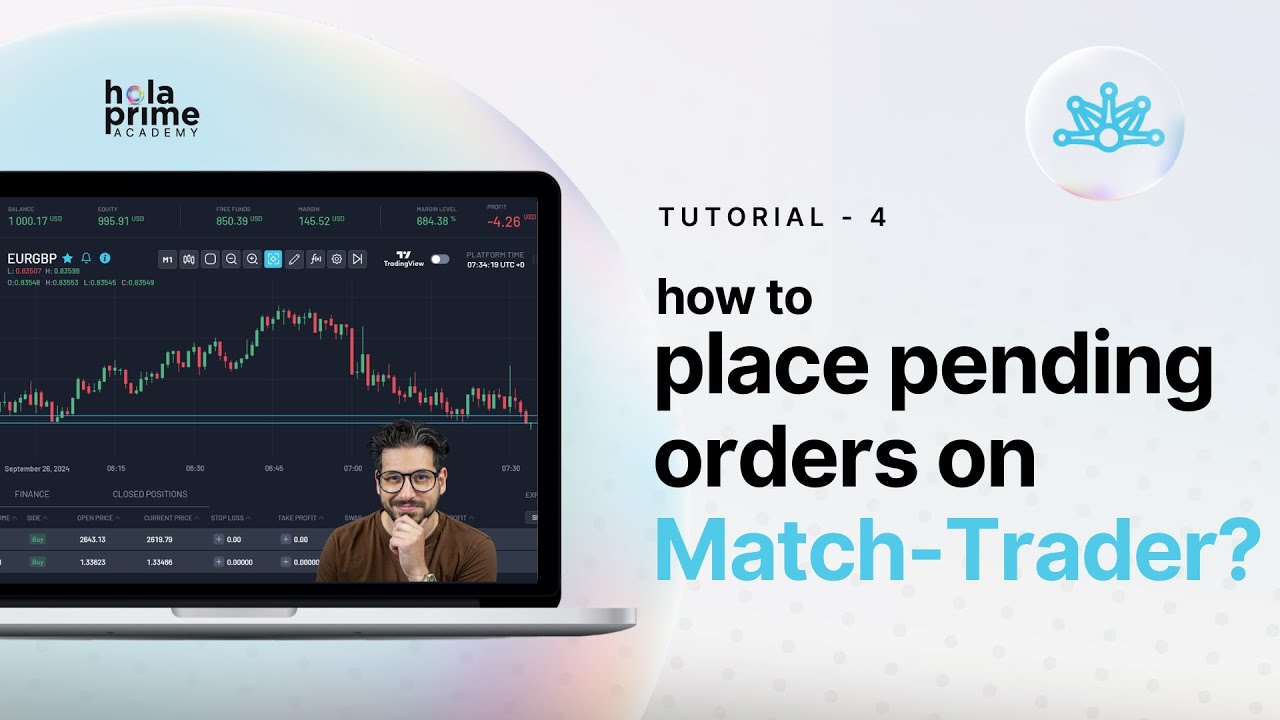
Pending Orders
-
Switch to Pending Order tab, set lot size and trigger price.
-
Types of pending orders depend on price relative to market:
-
Above market: Sell Limit, Buy Stop
-
Below market: Sell Stop, Buy Limit
-
Modify pending orders via chart or Pending Orders tab.
Modifying and Partially Closing Trades
-
Adjust stop-loss or take-profit using edit icons or directly on the chart.
-
Partially close trades via Modify icon and select lot size to close.
-
Close multiple trades using filters (e.g., all losing trades).
5. Managing Pending Orders
-
Track all pending orders in the Pending Orders tab.
-
Modify price, stop-loss, or take-profit as needed.
-
Cancel orders using the cross icon.
6. Account Statements and Finance Section
-
Navigate to open positions, Finance or Closed Positions tab.
-
Download account statements by clicking on the download icon in the top right corner of the trade window:
-
Selecting date range
-
Choosing sections (Open Positions, Closed Positions, Finance)
-
Selecting file format (CSV for separate, HTML for combined)
-
Click Export to download.
7. Switching Accounts and Profile Settings
-
Switch accounts via top-left account number.
-
Profile section (top-right) allows:
-
Switching between light and dark mode
-
Logging out
8. Conclusion
Match Trader is a feature-rich trading platform suitable for beginners and advanced traders:
-
Easy account management and switching
-
Powerful charting and indicator tools
-
Flexible order placement and modification
-
Comprehensive account statements and finance tracking
Mastering these features ensures efficient trading, better risk management, and a smooth trading experience.
.png)
.png)
.png)
.png)
.png)
.png)