

Introduction
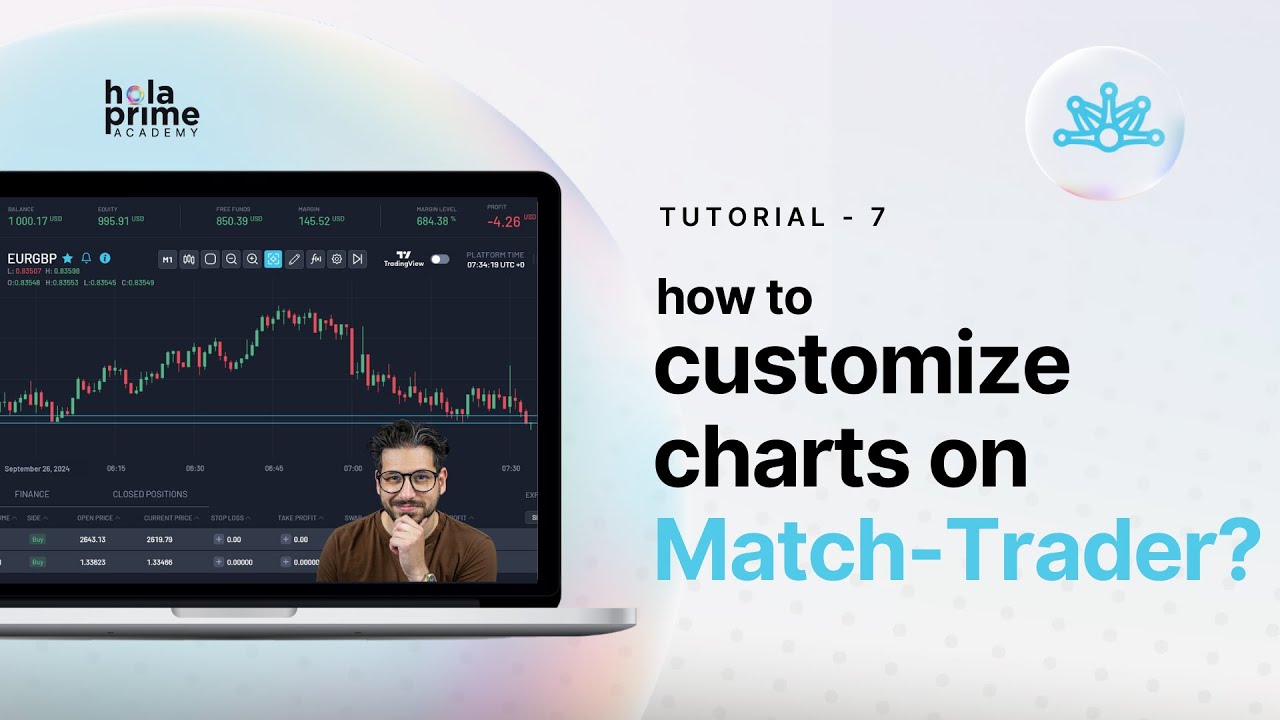
This guide explains how to open and customize charts on the Match Trader platform. It covers step-by-step instructions for selecting instruments, adjusting chart layouts, using drawing tools, adding indicators, and trading directly from charts, making it ideal for beginner traders who want to efficiently monitor and analyze the market.
1. Match Trader Chart Layout Overview
-
After logging in, the center of the platform displays the chart window.
2. Opening a Chart for a Specific Instrument
-
Click on the desired instrument in the instrument window (e.g., GBPUSD).
-
The chart for that instrument will appear in the chart window.
3. Customizing Chart Settings
Time Frames and Chart Types
-
Change the time frame: 5-minute, 15-minute, hourly, daily, weekly, or monthly charts.
-
Change the chart type: candles, bars, line or area
Multiple Charts and Layouts
-
Open multiple charts simultaneously (up to 4).
-
Add instruments to additional chart windows (e.g., AUDUSD alongside GBPUSD).
-
Adjust the layout to horizontal or vertical.
Zoom and Crosshair
-
Use zoom in/out to adjust chart view.
-
Crosshair lets you identify the exact price level and time point of any candle or chart position, while also displaying OHLC data (Open, High, Low, Close) next to the symbol name for quicker market analysis.
4. Drawing Tools and Indicators
-
Drawing tools include: vertical lines, horizontal lines, trend lines, channels, and Fibonacci retracements.
-
Click a tool to place it on the chart.
-
Adjust color and size by selecting the tool, and remove it by clicking the delete icon.
-
Move tools by dragging them
-
Indicators:
-
Match Trader provides a range of inbuilt indicators.
-
Click an indicator to add it; click the cross to remove it.
5. Chart Settings and Trading View Integration
-
Chart settings allow you to:
-
Enable/disable grid lines.
-
Show/hide open positions, pending orders, and ask line.
-
The Colors tab allows you to customize the chart colors.
-
Trading View charts can be toggled on for enhanced features.
-
Check server time and maximize the chart window for better visibility.
6. Placing Trades Directly from Charts
-
After maximizing, you can execute trades by clicking Buy or Sell.
-
Open trades are visible directly on the chart.
Conclusion
Match Trader provides flexible charting and trading options:
-
Open and customize charts for multiple instruments.
-
Use advanced drawing tools and indicators for analysis.
-
Execute trades directly from the chart for faster trading.
-
Maximizing charts enhances visibility and workflow.
.png)
.png)
.png)
.png)
.png)
.png)