

Introduction
Market conditions are constantly changing, and a pending order that made sense an hour ago might need adjustment before it triggers. DXtrade offers flexible ways to modify your entry price, change your position size, or cancel an order entirely if your trade setup is no longer valid. This lesson covers both the technical and visual methods for managing your pending orders to ensure your strategy remains up-to-date with current market movements.
Placing a Quick Pending Order
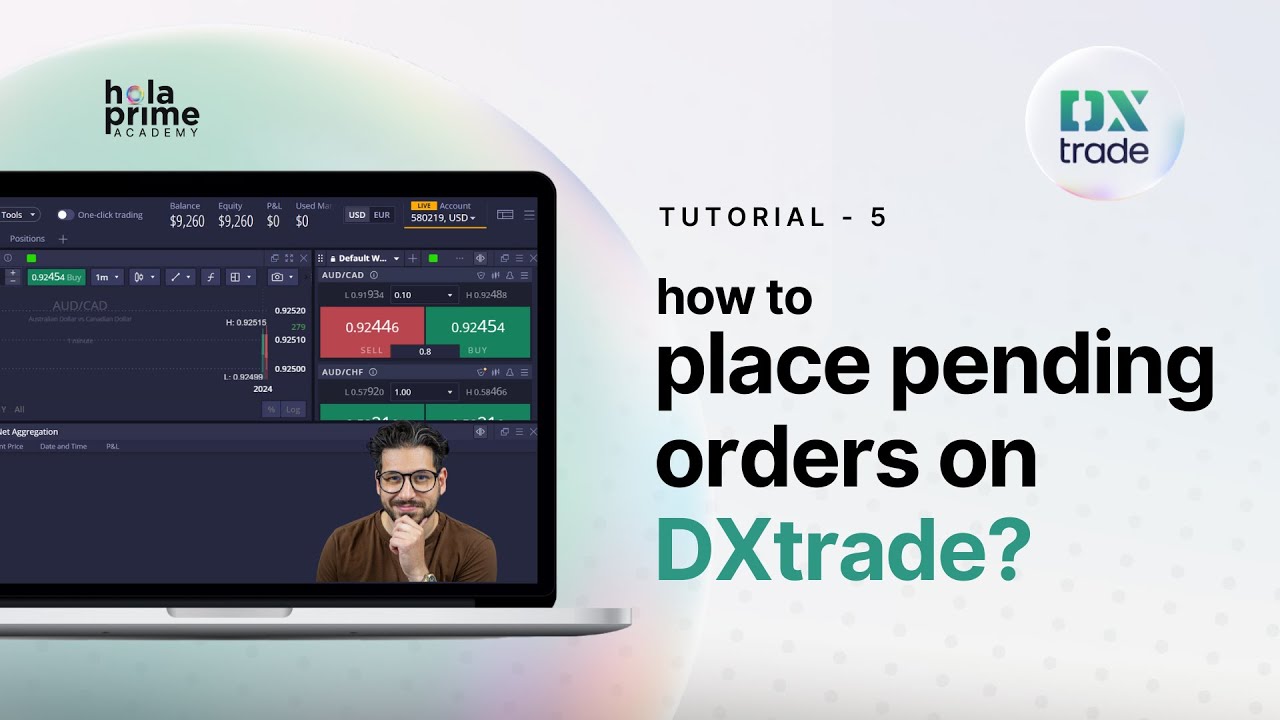
Before you can modify an order, you must have one active. A fast way to set a pending order is to right-click directly on the chart for your chosen instrument. Based on where you click relative to the current price, the platform will offer options for Buy/Sell Limits or Buy/Sell Stops. Selecting an option opens the order window where you can set your initial lot size and price before clicking Send Order.
Modifying Orders via the Orders Tab
To make precise adjustments to your active pending orders:
-
Navigate to the Orders tab at the bottom of the platform interface.
-
Right-click on the specific order you wish to change and select Modify.
-
The "Edit and Replace" window will appear. Here, you can change the Lot Size or the Trigger Price to match your updated analysis.
-
Click Edit and Replace to finalize the changes.
Visual Modification on the Chart
DXtrade also allows for a more intuitive, visual way to manage your pending entries:
-
Locate the Order Line representing your pending entry on the chart.
-
Simply click and drag the line to a new price level.
-
Once you release the line, the "Edit and Replace" window will pop up automatically.
-
Confirm the new price and click Edit and Replace to update the order instantly.
Adding Protection to Pending Orders
You don't have to wait for an order to trigger to add risk management. While modifying a pending order, you can add Stop-Loss and Take-Profit levels:
-
In the "Edit and Replace" window, check the box for Protection Orders.
-
Enter your desired SL and TP values.
-
Once the pending order eventually triggers and becomes an open position, these protection levels will automatically be attached to it.
Canceling Pending Orders
If a trade setup is no longer valid, it is important to remove the order to prevent accidental entries:
-
Orders Tab Method: Right-click the trade in the Orders tab and select Cancel Order, or simply click the Cross (X) icon next to the trade.
-
Chart Method: Click the Cross (X) icon located directly on the pending order line on your chart.
Once canceled, the order is removed from the system immediately, and you will no longer be at risk of entering that specific trade.
.png)
.png)
.png)
.png)
.png)
.png)