

Introduction
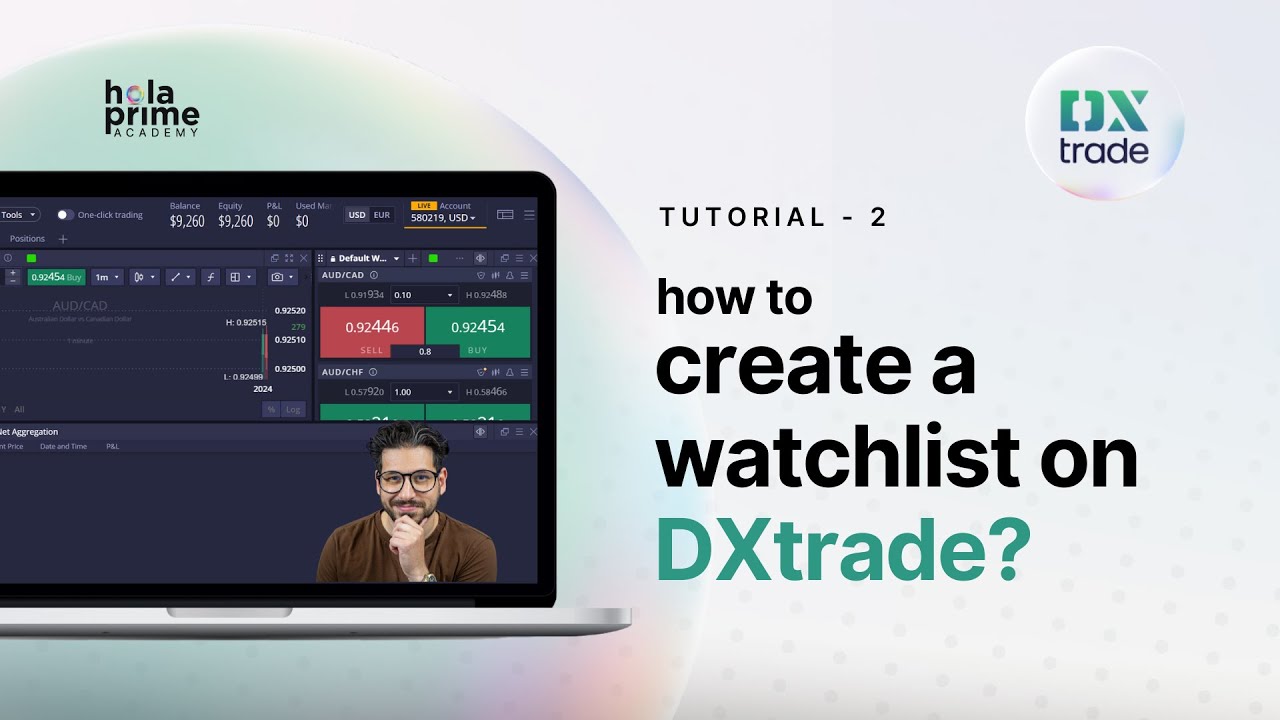
An organized workspace is vital for efficient trading. The DXtrade platform allows you to move beyond the standard list of assets and create personalized watchlists tailored to your specific trading style. Whether you want to group indices, forex pairs, or commodities, this guide will show you how to build, manage, and customize your watchlists to keep your most important instruments front and center.
Accessing the Default Watchlist
Upon logging into DXtrade, you will find the "Default Watchlist" on the left side of the platform interface. This list contains all available trading instruments and serves as the starting point for your market analysis.
Creating a Custom Watchlist
To build a list specific to your needs:
-
Click on the "Default Watchlist" header at the top of the section.
-
Select "Create your list" from the menu.
-
Name your new list (e.g., "Indices" or "Daily Trades") and click "Save".
Adding and Organizing Instruments
Once your list is created, use the search bar to find specific assets like "US30". Selecting the instrument adds it to your list automatically. You can organize these assets by right-clicking on any instrument:
-
Move Up/Down: Prioritize the instruments you trade most frequently.
-
Insert: Right-click and select "Insert" to add a new instrument between two existing ones rather than at the bottom.
-
Remove: Select "Close instrument" to delete an asset from your custom list.
Customizing Columns and Data
You can tailor exactly what information is visible for each asset in your grid. By clicking the hamburger icon (three horizontal lines) and selecting "Columns customization," you can add or remove data points such as the Spread column. Click "Add to table" and then "Apply" to update your view.
Switching Watchlist Formats
DXtrade offers different visual layouts for your watchlist:
-
Grid Format: Displays data in traditional rows and columns, ideal for detailed analysis.
-
Buy/Sell Button Format: Changes the layout to large buttons, enabling one-click trading for faster execution.
Quick Access Tools: Charts, Alerts, and Limits
Each instrument in your watchlist includes several quick-action symbols:
-
Candlestick Symbol: Opens a dedicated chart window for that instrument.
-
Bell Symbol: Allows you to set price alerts so you never miss a move.
-
Limit Symbol: Enables you to set predefined Stop-Loss or Take-Profit limits before entering a trade.
By utilizing these management tools, you can ensure your DXtrade interface is optimized for speed and clarity during live market conditions.
.png)
.png)
.png)
.png)
.png)
.png)