

Introduction
DxTrade is a versatile multi-asset trading platform used by modern prop firms and brokers. For a beginner, the interface can seem complex, but it is built to be highly intuitive once you understand its modular design. This comprehensive tutorial provides a full overview of the platform, from your very first login to advanced chart customization and performance tracking. Whether you are executing high-speed scalps or performing deep technical analysis, this guide will ensure you are comfortable navigating every corner of the DxTrade environment.
Platform Overview and Default Layout
Upon logging in, you are greeted by a default layout containing charts, watchlists, and your current positions. The platform is modular, meaning you can add or remove windows like Market Depth or Orders by simply clicking on the "Windows" menu and selecting the tool you need. These windows will appear in your workspace, where you can drag and snap them into place.
One-Click Trading and Account Details
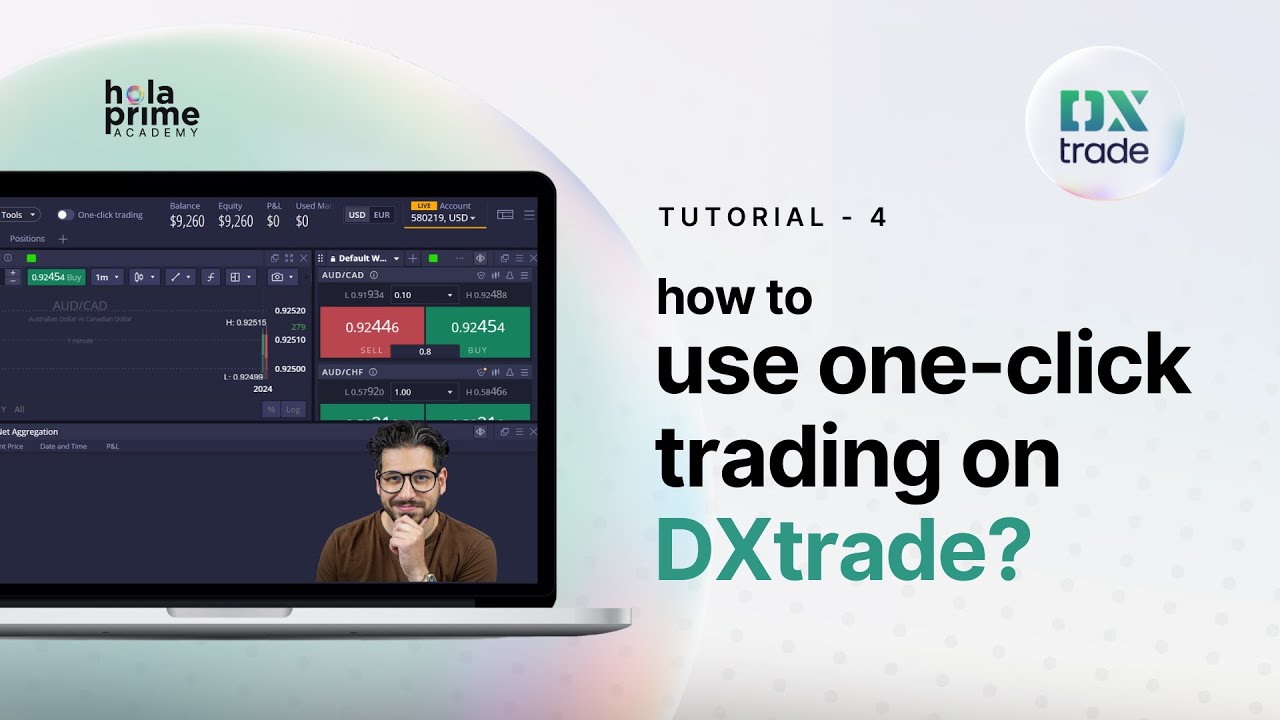
For those who need speed, One-Click Trading can be enabled via a toggle at the top of the platform. Once activated, clicking buy or sell in any window executes the order instantly. At the top of your screen, you can also monitor your Balance, Equity, Margin Level Percentage, and P&L. You can even switch your base currency display between EUR and USD with a single click.
Managing Watchlists: Default and Custom
The Default Watchlist on the left is your hub for all available instruments. You can right-click any asset to see Instrument Info, including swap charges and trading hours. If you want to stay focused, you can create a Custom Watchlist (e.g., "Indices"):
-
Click the header and select "Create your list."
-
Use the search bar to add specific assets like US30.
-
Customize your data columns (like adding the Spread) via the hamburger icon.
Order Types and Execution (Market vs. Pending)
DxTrade supports several ways to enter the market:
-
Market Orders: Executed immediately at the current price.
-
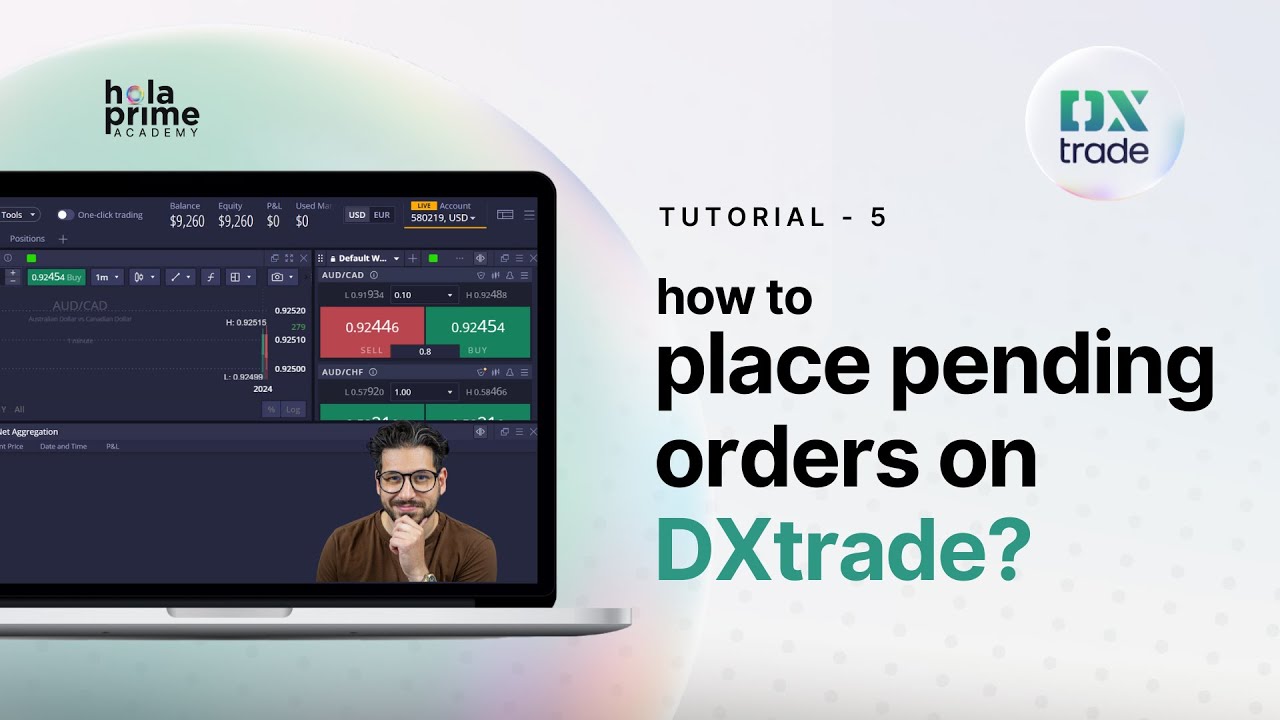
Pending Orders (Limits and Stops): Set to trigger at a specific price in the future. You can place these via the order window or by right-clicking directly on a chart and selecting a price level.
When placing any order, you can add Protection Orders (Stop-Loss and Take-Profit) using units like absolute price, pips, or a percentage of your balance.
Chart Customization and Technical Tools
The chart window is packed with professional analysis features:
-
Toolbar: Change timeframes (1m to 1mo) and chart types (Candles, Bar, Line, etc.).
-
Drawings: Access trend lines, rectangles, and Fibonacci tools from the sidebar.
-
Indicators: Add built-in tools like RSI, Bollinger Bands, or Moving Averages.
-
Settings: Deep-dive into the "Colors" and "Legend" tabs to personalize your candles and background. Don't forget the Multi-Chart feature to view up to three instruments at once.
Managing Open Positions: Modifying and Closing
At the bottom of the platform, the Positions Tab keeps you in control of your active risk:
-
Modify: Double-click any trade to update your stop-loss or profit target.
-
Partial Close: Click the cross (X) icon and enter a specific lot size to close only a portion of your trade.
-
Close All: Use the bulk-close icon to terminate all open positions instantly during high volatility.
Performance Tracking: Dashboard and Journal
DxTrade includes powerful built-in analytics:
-
Trading Journal: Review every past trade, add personal notes, and use tags to document market events.
-
Trading Dashboard: A high-level overview of your win rate, average hold times, and total profit. You can filter this data by asset type (e.g., Crypto vs. Forex) to see where you are most successful.
Customizing and Saving Layouts
If you build a workspace you love, you can save it as a custom layout. Click the Plus (+) icon to start a fresh workspace, arrange your tabs, and then use the "Save layout as" option. These "My Layouts" can be reloaded at any time, allowing you to switch between a "Scalping" view and a "Swing Trading" view in seconds.
Profile Settings and Account Statements
The three-line menu in the top right provides access to your profile settings. Here you can:
-
Account Statement: Select a time period and generate a downloadable report of your trading history.
-
Broker Alerts: Enable price notifications to your mobile or browser.
-
Theming: Toggle between light and dark themes and manage sound notifications for filled orders.
By mastering these features, you turn DxTrade from a simple charting tool into a powerful, personalized trading station designed to support your growth as a professional trader.
.png)
.png)
.png)
.png)
.png)
.png)