

Introduction
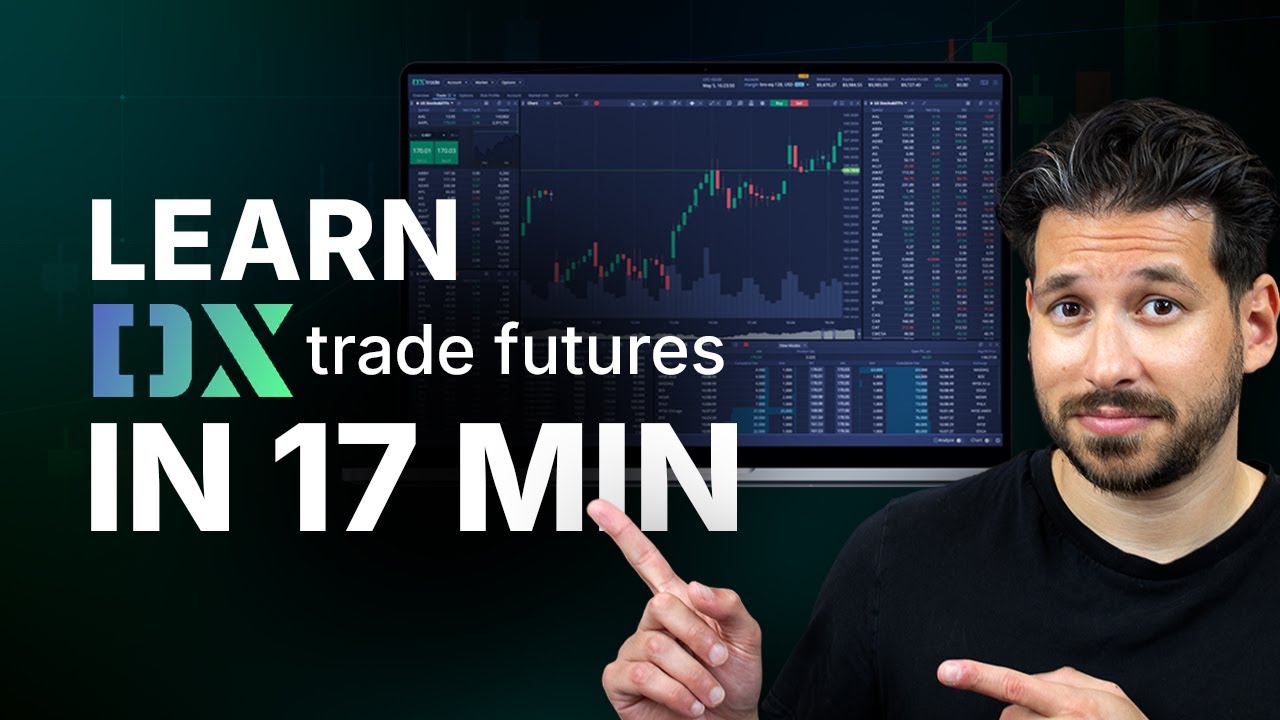
This tutorial provides a streamlined walkthrough of the DX Futures platform used by Hola Prime. Whether you are setting up your first watchlist or executing advanced pending orders, this guide ensures you can navigate the platform with institutional-grade precision.
1. Account Setup & Watchlists
Efficiency starts with a clean workspace. The DX Futures platform allows for fully customizable watchlists.
-
Creating a Watchlist: Click on the + icon, and then choose Continuous Futures. From here, you can create a new list and name it (e.g., "My Trading List").
-
Adding Symbols: Use the Symbol search bar to add essential instruments like the NQ (NASDAQ) and ES (S&P 500).
-
Management: To remove an asset, simply right-click the instrument and select Remove Current.
2. Trade Execution: Market & Pending Orders
The platform supports multiple entry styles, from instant market execution to breakout strategies.
-
Market Orders: Use the red (Sell) and blue (Buy) buttons at the top left of the chart for instant execution.
-
Limit Orders: To buy or sell at a specific price, right-click the desired level on the chart and select Buy Limit or Sell Limit.
-
Stop Orders (Breakouts): If you are a breakout trader, right-click above or below price action and select Buy Stop or Sell Stop to enter only when the market trends in your direction.
3. Setting Stop-Loss and Take-Profit Levels
Protecting your capital is the core of the Hola Prime philosophy.
-
Manual Protection: Once in a trade, right-click the chart at your desired risk level.
-
If you are in a Sell position, your stop-loss will be a Buy Stop and your take-profit a Buy Limit.
-
If you are in a Buy position, your stop-loss will be a Sell Stop and your take-profit a Sell Limit.
-
Drag-and-Drop Adjustment: You can visually adjust your levels by dragging the order lines directly on the chart.
-
Important Note: Always remember to cancel your remaining take-profit or stop-loss orders manually if one side of the trade is closed, as pending orders remain active on the platform.
4. Advanced Charting & Indicator Tools
DX Futures provides a robust suite of tools for technical analysis, including indicators and order flow visuals.
-
Adding Indicators: Click the Studies tab to search for and apply technical indicators such as the Exponential Moving Average (EMA). You can customize the length and color to fit your visual preference.
-
Drawing Tools: Use the left-hand sidebar to access trend lines, horizontal rays, and shapes like rectangles for marking supply and demand zones.
-
Market Correlation: Use the Compare tool to overlay two different instruments (e.g., ES vs. NQ) to analyze their correlation in real-time.
5. Account Performance & Statements
Transparency is key to long-term growth. The platform offers detailed reporting tools.
-
Account Dashboard: The header displays real-time data including Balance, Equity, Net Liquidations, and Unrealized P&L.
-
Order History: The bottom panel tracks all orders (Working, Filled, or Canceled) for a full audit trail of your trading day.
-
Exporting Data: In the top right corner, access Account Statements to generate HTML or PDF reports of your trading activity for taxation or performance review.
-
Custom Layouts: Once you have personalized your chart colors and indicators, save your setup under Layout > New Layout to instantly revert to your preferred "Hola Prime" aesthetic at any time.
Conclusion: The DX Futures platform is designed for clarity and speed. By mastering these basic functions—specifically risk management and order types—you can trade with the same transparency and discipline we value at Hola Prime.
.png)
.png)
.png)
.png)
.png)
.png)